The EdTech Coach Podcast

Showing posts with label ipad. Show all posts

Thursday, June 14, 2018

Engaging Apps For Summer School


Summer school teachers, the days of lecturing for hours or having your students do book work for most of the day are long gone.  You have one class with the same students and the same subject for the entire day, why not make it fun and engaging?  With technology, students can now be fully engaged in a lesson while spending hours in the same class. 

You say you don't have access to Chromebooks or iPads in the classroom?  Well, there are ways around that, especially at the high school level.  Knowing that most of your students have cell phones will set you free of a day of classroom monotony. 

Here's some ideas to energize your summer school classroom, all of which have phone friendly apps:

Socrative is a great way to spend a summer class session. Split the class up into teams using just a few cell phones and boom! You've got fun learning that can last as long as you need it or want it to.  Students can participate in a race to answer questions correctly or review with a quick quiz or morning warm up.

Kahoot is another great way to keep the troops entertained while there is actual learning going on. Again, split the class into groups based on cell phone availability and review the days topic with your students. You can create a quiz beforehand or quickly use one that has already been created.

Nearpod is a good activity to use when other reviewing content or going through it for the first time. With Nearpod, the teacher can create either a teacher led presentation or a student paced presentation where the students work through the various activities at their own pace.  Nearpod exercises can include drawing activities, quizzes, short/long answer, and collaborative activities.  Nearpod is great for keeping students engaged throughout a lesson.

Edpuzzle is a fantastic way to show your class a video.  Using Edpuzzle, students answer questions throughout the video, keeping them engaged.  Students watch the video at their own pace.  So, if they don’t know they answer to a question you’ve posed, they can simply review the video again until they find the right answer.

Saturday, March 31, 2018

5 Apps To See If Your Students “Get It”


I'm not talkin' about an app to use for formal assessments, although you can use some of the apps for a formal test.  I'm talkin' about those apps where you can quickly insert an assessment in order to see if your students "get it."  Or, perhaps you want to do a quick review of the previous days material.  These apps will most certainly help you out:


1. Socrative: A fantastic app that can be used with Chromebooks or iPads.  Socrative is great to use for an exit or entrance ticket.  Socrative also has a "quick question" option where you can ask a question of your class on the fly.


2. Nearpod: A great interactive presentation app, available both online and as an iOS app.  You can make a quiz as part of your lesson.  Or, if you prefer, insert quiz questions throughout the Nearpod lesson and monitor your students learning as the students work through the Nearpod.


3. Pear Deck: Another good interactive presentation app that works great with Google Classroom in that you can post your "Takeaways" to your Google Classroom and send to your students Google Drive.  Pear Deck allows the teacher to verbally ask a quick question, giving your students a space in the Pear Deck in which to answer.

4. Seesaw: A super app to use for student portfolios.  While students are working in the app, it's easy for the teacher to insert a quick question for the students to address to check for understanding.


5. Kahoot: A staple in most tech based classrooms.  Kahoot makes it easy to put together a couple of questions and take the temperature of your class.  Gamify your check for understanding with Kahoot!

Thursday, March 29, 2018

6 New Things To Try In Your iPad Classroom


If you’ve got iPad's in your classroom, Apple's March Education Event gave teachers a few extra tools.
  1. Apple has incorporated the capabilities of the the Mac’s iBooks Author app into its Pages app for iOS.  This means that you can now create ebooks that can be shared to the iBooks store.  Creating ebooks has never been so simple.
  1. Apple’s iWork suite of apps supports what they call “smart annotation.”  Teachers can write on a document in which the annotations stay anchored on the page.  So subsequent document editing will provide for the annotations, not typing under the annotations or over them.  Instead, editing will go around the annotations.
  1. Now, collaboration is much easier with the iPad.  Apple added “real time collaboration” to their iWork suite.  Now groups of students can work on a document in real time.
  1. Pages now comes with a new “presenter mode.”  This new mode makes it easier to do two things: use Pages as a whiteboard, presenting what you have on the big screen in easier to read font.  And, should the need to pressing a speech, presenter mode makes it easier to read and scroll the text in the document.
  1. The Schoolwork App is on its way.  The Schoolwork app is Apples answer to Google’s Classroom app.  The app will allow the teachers to point students to a particular app, check on student progress while they are working in an app, and create handouts for students.
  1. Teachers can now manage their class from their Mac! The Classroom app, once only available on iOS, is coming to the Mac. 

Monday, July 3, 2017

Go Paperless in the Classroom with Showbie!

Paper? Who needs paper in the 21st century classroom? There are a multitude of apps out there that help teachers avoid the dreaded line at the copy machine. After all, with an app like Showbie, you'd be hard pressed to try and use paper in the classroom. Showbie is essentially a learning management system where you can deliver material to students, keep track of their work, and track their progress in the class. One thing that sets Showbie apart from other LMS's is that it's very easy to use. Explore Showbie with a few clicks and you'll find you're already a pro at using it.
Showbie is a snap for students to sign up. Students simply navigate to the Showbie site (or open the app on their iOS device) and sign up with their Google account or they can create a unique username and password.

On the surface, without the paid "pro" features, Showbie is a great way to distribute and receive student assignments. What make's Showbie so easy to incorporate in your classroom is that it works with a multitude of apps and devices. You can easily have your students show you how they solve a math equation using Explain Everything, they can mark-up a document in Skitch, or write an essay in Apple's Pages. All are easily shareable to Showbie. Showbie can be accessed using everything from an iOS device like an iPhone or iPad using the Showbie app, a Chromebook, or a plain ol' Windows machine.
Showbie has a "shared folder" component where the teacher can simply deposit an assignment so students can have access to it. The assignment can either be marked "view only" or the teacher can give each student access to mark on their own copy using Showbie's text tools.
Once it deposited in the shared folder, each student has their own individual copy. With the text tool, students can mark on the provided worksheet. Students can even record a voice note and include it with their assignment. This is a great way to ask students to practice a new language or explain their thought process.
It's easy to stay on top of class work with Showbie. Click on the assignment and you get a list of your students. You can instantly tell who has turned in the assignment or even who has asked a question about the assignment.
One of the great things about Showbie it the "assignment lock' feature (pro feature). Set a due date, activate "assignment lock" and no longer will students have access to the assignment. No longer does the teacher have to wonder if a student has turned in the assignment after the due date.
Showbie allows the teacher to create student groups (pro feature). Create groups to work on a project together. Class discussions are also an important part of Showbie. They allow you and your students to have a discussion in and outside the classroom.
Showbie makes it easy to grade student work as well (pro feature). While viewing a student assignment, you can add a grade as a number or letter grade. You can also add a comment if you wish. Keep all of your students work together in one place with student portfolios.
Even without the paid pro features, Showbie is still a great alternative to other LMS's. A teacher would owe it to themselves to give it a try.

Saturday, April 8, 2017

Five Apps to Get Students Excited About Journaling


Journaling can play an important part in the classroom for a number of reasons. Journaling helps students develop their writing skills and become a more confident writer. It's a great way for students to self-reflect. And, in the case of a free-form journal, it may aid in decreasing stress as they are able to pour out their thoughts and emotions. Journaling in the classroom is also a great way for students to reflect on their learning.
As far as journaling tools go, there are the obvious word processors such as Google Docs, Pages, and Word. But the following are five unique ways students can journal in the classroom:
  1. Google Slides/Keynote: Presentation apps are an easy way for students to organize their journals and an easy way for teachers to review them. Simply use each slide as a day's journal entry. Let students edit the slide so they might include pictures, themes, and various fonts.

  2. Seesaw: I've written how cool Seesaw is as far as keeping a student portfolio. In essence, it's a journal where students can reflect on their work by including pictures and video about what they're doing in the classroom. Take it one step further and post some of the student entries on the class blog included in Seesaw.

  3. Kidblog: A way for students to not only keep a journal, but develop good digital citizenship skills by creating a blog. Kidblog is a blogging platform tailored for the classroom. With Kidblog, the teacher is in complete control. From who can see the posts to who can comment, Kidblog puts the teacher in total control of the blog.

  4. Tag Journal: An iOS app that can be used for both note-taking and journaling using, text, voice recording, and pictures. The cool thing about Tag Journal is reflected in its name. You can "tag" your entries. A student may want to tag journal entries specific to what they're learning in class. For example, tag entries regarding the Civil War or World War II. It's a great way for students to organize their journal according to topic or subject.

  5.  Paper by Fifty Three:  A unique way to keep a journal. Unleash students creativity and give them ownership of their learning with this iOS app. There's no end to what students can do with Paper. Paper enables students to be creative in documenting their learning by giving them the ability to draw using a variety of tools, annotate screenshots, incorporate photo's, as well enter text.

Wednesday, April 5, 2017

Seesaw: A Digital Portfolio App for the 21st Century


Paper is out. Digital is in. Seesaw is an awesome digital portfolio and blog where students are empowered to document their learning in their class. It’s very easy for students to sign up. They can sign in using a QR code or through an email or Google account.
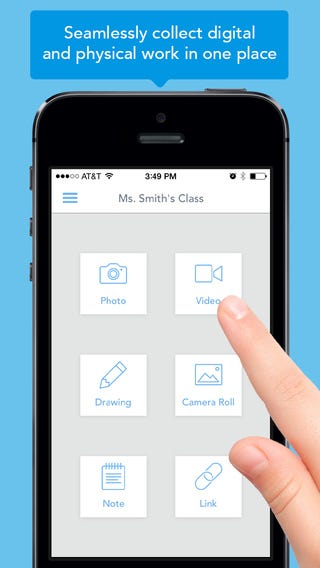
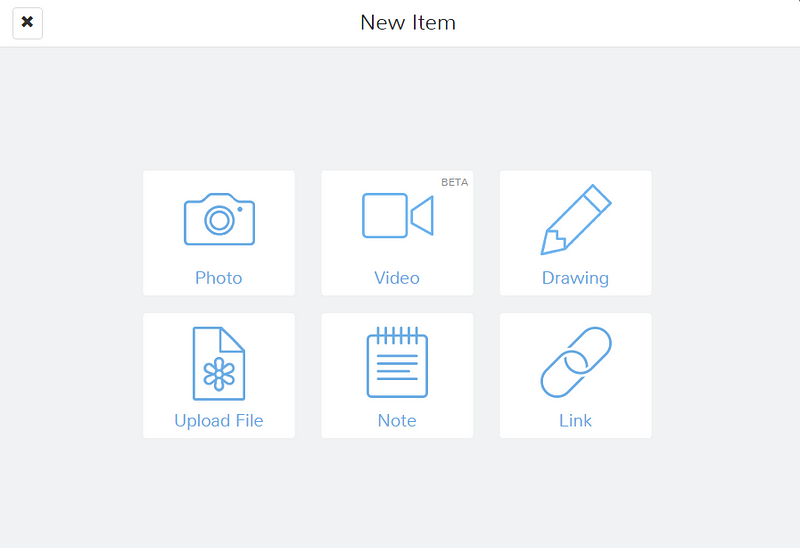
Students can capture their work in a variety of ways. They can document their work in a variety of ways. They can insert something from their camera roll or take a picture of a project or assignment and insert it from there. Seesaw also gives them the option to shoot a brief video about their work or project and insert it into the platform. They can include links to a particular website or draw on a blank canvas. Lastly, they can write a note or short essay and include it in their portfolio.
Students can collect their work from any device. They can leverage their PC or Chromebook camera. There is an app for Android, iOS, and ChromeOS. It’s great in both Chromebook classrooms and iPad classrooms as well.


Seesaw also provides the teacher with the option to create a class blog based on student work. The teacher can take student work and post it to the class blog, therefore, everything goes through the teacher before being posted to the class blog. The blog can be accessible with or without a code. This really gives students ownership of their work, knowing that there will potentially be many other people that will see it.
Another cool aspect of Seesaw is that parents can have access to their child’s work in Seesaw. So, instead of asking what their child did that day — they know! Parents can bring up an assignment with their child instead of the other way around.


Keeping with folders, student portfolio work can be assigned to as many folders as needed. For example, if a teacher wants to organize work according to topic or chapter, simply create a folder.
One of the ways that that Seesaw is worth its weight in gold is its usefulness at parent-teacher conferences. Instead of tracking down student work, simply take along your iPad or laptop and open up their portfolio. If a teacher wants to set aside student work for a parent/teacher conference, simply create a folder for certain work. It’s that easy!
If you’re looking for a digital portfolio for student work, look no further than Seesaw! For more info, check out Seesaw at http://web.seesaw.me/

Sunday, August 21, 2016

Rough Draft: A Mac and iOS Writing Tool for the Classroom


Rough Draft is a writers tool that educators using iPads may want to consider.  Rough Draft is a text editor that's been available for the Mac and has recently become available on iOS.  It's the app that constantly reminds you that you are working on, as the name implies, a rough draft. How does it do this? Well, when working in Rough Draft, there is no delete option, only the ability to strikethrough. By doing so, you are constantly reminded that what you're working on is only a draft.
How does this help someone write? By having the ability to see the strikethroughs on the page, you are more likely to continue your work without pausing to figure out just the right line, phrase, or word to include in your document. You can do that later. Right now, the important thing is to your get your thoughts out of your head into the computer. This, in essence, sets the writer free and enables them to be less careful and more carefree when writing their document. All too often we edit while writing, ultimately taking way too long to get our ideas out. The point is, you want to stay in the flow and not pause. The makers of Rough Draft, 96 Problems, say that when you type a document on a computer, you are given the impression that its permanent, so you spend time perfecting your document while you write. Before you know it, that 500 word document you sat down to write has taken you hours. Rough Draft eliminates that.
Rough Draft also provides you with the ability to insert a placeholder in your text. Let's say you want to insert a picture or quote into your document but aren't quite sure which picture you want or what the perfect quote will be, you just know you want one in there. Rough Draft inserts a placeholder where you want to place the item so that you can come back to it later, when you're in the editing process. This is most certainly a timesaver. No longer are you pausing your writing to search for that quote or picture, you continue to write. And that's the purpose of Rough Draft, to keep you writing.
When you're ready to edit, you simply click "revise" and the strikethroughs are removed while the placeholders are kept in place. Your document appears as clean as can be. If you prefer to use yourfavorite text editor to do the editing and publishing, Rough Draft allows you to export your work.
When all you want to do is wrtie, Rough Draft is a good tool to not only have in your writers tool box, but in the classroom as well.

Monday, June 20, 2016

Create Fun Study Guides with iBooks Author!


When iBooks Author for the Mac was first introduced, it was seen as fairly revolutionary. One could easily create their own textbooks and, furthermore, publish them in the iBooks store for all to read. The authoring Mac app makes it easy to not only publish your own textbook or novel (or short story for that matter), but it’s a great way to create interactive study guides for your students.

Provided your class has access to iBooks, iBooks Author provides the teacher with a fun way for students to not only learn new content, but review content as well. Most of today’s students are familiar with technology and have grown up with it. They’ve become accustomed to interacting with content, rather than just looking at something on a page. iBooks Author allows students to interact with slideshows, videos, and 3-D content like never before.

As a study guide, the books you create in iBooks Author allow the students to take notes right in the textbook. They simply swipe the content they want to add to their notes. Then, after their not taking session, they can change to note view to view all of the notes they’ve taken. Furthermore, the notes the students take appear on study cards, where they can add such things as definitions to vocabulary words to the back of the card.

Upon starting iBooks Author, you are presented with numerous templates for which to begin putting your book together. Choose the template that best fits what you want to do and your off! If you can drag and drop, you already know how to use iBooks Author. You can drag Pages or Word documents into your book, add Keynote presentations, or even add a short movie to help get your point across.

iBooks Author is a great way for students to interact with content. As a teacher, you can imbed your notes and presentations. iBooks Author is a tool that teachers can use to either provide study guides or provide a powerful, interactive supplement to their textbook.

Friday, April 29, 2016

A Puzzle Maker Worth Owning


Ok, so here's the scenario:
You're getting ready for the day when you realize that you need to fill about 10 or 15 minutes at the end of your class.  What do you do?  Well, I can recommend an iPad app that will help you while having the kids practice their vocabulary.
It's called "Make Your Own Puzzles."  It's a crossword and word search puzzle maker for iOS that's quick and easy.  Simply enter the words for a word search and the puzzle maker will fashion a word search to your specifications or...enter the definitions of the words for a quick crossword puzzle, again built to your specifications.
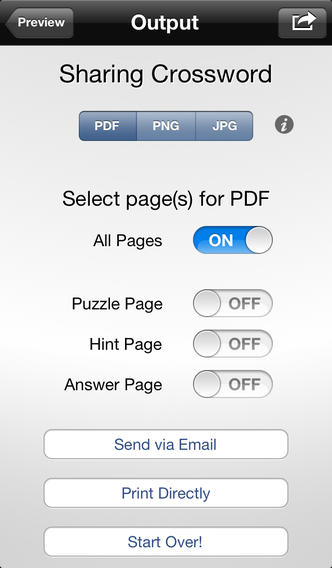
After your puzzle has been created, you have the option of printing out just the puzzle page, a puzzle page with a key, or, in the case of a crossword puzzle, a puzzle page with hints.
"Make My Own Puzzles" can be found on the iOS App Store for $1.99.  If you need a crossword/word search puzzle maker, this is the one to get.
One thing to remember, the app makes puzzles that are intended to be printed out.  It is not intended to make puzzles that are playable in the app.