The EdTech Coach Podcast

Thursday, February 14, 2019

You Don’t Need Tech Management Software in Your Classroom


At a school where I was a tech coach, we used Chromebook monitoring management software.  It's the type that gives the teacher the ability to monitor what sites students visit using their Chromebooks.  One issue that teachers had was getting the software to work on a consistent basis. Some days it would work flawlessly, allowing the teacher to see all of their students Chromebooks, while on other days, it would glitch.  Some Chromebooks would be visible or the software just wouldn’t launch.  I found that many of those teachers that struggled to get it to work were turned off using technology in their class—period.  Some felt that they couldn’t conduct their lessons with the Chromebooks without the ability to monitor their students with the software.  

It seemed that the software was something of a crutch.  Without the software, the teacher felt that they had little to no control in the goings on in their class.  I tell them, although it’s nice to have, they don’t necessarily need it to use their Chromebooks.


As I said, some feel that without their management software in their class, they can't use technology.  They tell me that they can't trust their students to get their work done.  "There are too many distractions with the Chromebook" they tell me.  Ultimately, it comes down to how they dealt with distractions before tech entered their class.  I ask teachers, "how did you keep distractions to a minimum and therefore keep your students on task before students received the iPads?"  Apply those same principles you used teaching without tech and managing student use of iPads or Chromebooks in your class will be easy.

You don't need Chromebook management software.  If you do the following four things, management software in your class will be unnecessary.

1. Make engagement a priority. From the moment students enter your class, engage them in the days lesson, and don't let go!  Start your class with warm-up review of the previous days lesson using Kahoot or Socrative.  They key is, keep them engaged throughout the day and they won't have time to be distracted.

2. Make students want to do the assignment. Students need to know why they're doing the assignment.  Tell them how it's relevant to their lives or how the lesson will lead to what they will do later in the class.  Sell the assignment to them in a way that makes it beyond interesting!

3. Walk the Room.  You probably did this prior to those iPads or Chromebooks coming into your room.  It's really no different.  While your students are working, make sure you're actively walking around and checking to see what their doing.  Complement them or make suggestions about their work.  Don't sit behind your desk!

4. Make the screens visible.  My desks were in the old fashion rows.  But, when I got those Chromebooks, I made sure to move my desks up a couple of feet so as to make a pathway where I could walk or stand behind the class.  From the back of the room, I could easily see their screens.  And, if I couldn't, I would walk behind the row to make sure they were on task.

Monday, February 11, 2019

Use These 3 Apps for Pre-Assessment!


I was in a class recently where the teacher was beginning a new chapter. Instead of asking the students to open up their Chromebooks for a pre-assessment, she orally posed questions and asked for responses by asking kids to raise their hands. Her twenty-five student class remained mostly silent, with one student raising their hand to volunteer what they thought they knew, the rest of the class--crickets! Unfortunately, there may have been students that did know about the topic but where afraid to take a chance in front of the class.


When beginning a new unit, chapter, or topic, it's important to find out what your students already know about the said topic so as not to waste time covering material that the students already know. In the age of technology, apps can make this process easy and, depending on the digital tool, incorporate the pretest directly in the lesson.

Pre-assessment should be painless. Painless in a sense that you don't want your students to be timid in answering your assessment questions. You want them to give it their best shot, not being afraid of getting the question wrong. After all, it's not so much about the individual student, but about the data that you'll glean from your pre-assessment.
You want to know what your class already knows.


Socrative: Socrative is a great formal assessment tool. And, it can be handy for pre-assessments. Create a quiz and turn it into a racing game, where students try and answer all of the questions correctly in order to win the race. Then, at the end of the race, Socrative provides data on how your class answered each individual question.

Kahoot: Again, gamify your pre-assessment with a Kahoot. Always competitive, Kahoot engages students by presenting timed questions where students have a limited time to answer. Like Socrative, Kahoot provides a report on how well your students answered the questions so you can determine where you need to spend more time on your upcoming lesson.


Pear Deck: A fantastic interactive presentation tool that allows not only for student participation by typing in their answer but also allows them to draw their answer. Pear Deck has built-in templates asking students what they want to know about the upcoming topic while another asks them to draw what they already know about the topic.

Saturday, February 9, 2019

6 Apps for Digital Exit Tickets


It’s the end of the class.  You’ve just finished another one of your amazing lessons and now you’re sure your students are full of newly acquired knowledge.  But how do you know?  I mean, are you sure your students have learned everything you want them to?  There’s one way to find out, an exit ticket!  Since they’ve got they’re devices still on, you might as well put their minds and your teaching to the test and put the last few minutes of class to good use.

There are some good apps out there that can help you with exit tickets:

Socrative:  With Socrative, you could simply type up a “quick question” and ask your students to answer it.  Or, use one of the cool features about Socrative, the exit ticket feature.  The built-in exit ticket asks how well students understood the days material and what they learned in class that day.  The last question is reserved to be open-ended, asking students to answer the teacher's question.  This gives the teacher a great deal of flexibility as they can come up with a question on the fly.  The question can be asked orally or displayed in front of the class.

Padlet: Padlet lends itself to an end of class exit ticket because of its ease of use.  It helps to have a Padlet wall always ready to go at a moments notice.  Give your wall a generic name such as “what did you learn today” or “answer the teacher's question,” that way, it can be used any time.  Display the wall so students can see what other students have written so they can learn from them as well.

Twitter: If you already use Twitter in your class, this one is easy to do.  Simply ask your class a question with a specific hashtag.  Then, have students respond using the given hashtag.  What makes using Twitter convenient is the availability on smartphones and that most students are aready familiar with it.  Ask your students to take out their phones and respond to the question using the hashtag.

Google Forms: In much the same way you might want to have a Padlet always at the ready, you could have a generic Google Form ready to go.  If you use Chromebooks in your class, this is a no brainer.  Again, create a shor answer question that asks your students what they learned today or asks them to answer your question.

Flipgrid: Perhaps students would enjoy recounting what they’ve learned in a simple Flipgrid video.  Using an iOS device or Chromebook, ask your student to recount what they’ve learned that day. Or, if you want to see if your students have learned the particulars about a specific topic, give them a specific question to answer.

Google Classroom:  If you use Google Classroom, this would be particularly easy to do.  Create a quesion in the classwork section of Google Classroom, allowing students to answer it right in your Google Classroom page.

Friday, February 8, 2019

Free the Cell Phone! Why Teachers Should Allow it in Class.

One of the hot button issues among teachers is the student use of cell phones in the classroom.  Some teachers find the very sight of a student holding a cell phone in the classroom an act of reprehensible behavior.  I say, embrace the cell phone!  Don’t ban the one device that students are most comfortable using!  

What follows is in followed by exclamation points because I’m standing on my imaginary soapbox:

Free the cell phone and put it to good use in your classroom! Turn it from a device of evil to one that engages and increases participation in your classroom!  Since student phones are generally always on, you’ll find that you can get your class started in a snap when you ask your students to take out their phones for use with a particular exercise!  Don’t shun the phone, embrace it! As with adults, students are apt to be more productive using a tool that they're familiar with and enjoy using!

Use the following apps to engage students using their phones!  

Socrative:  A fantastic formative assessment app!  Socrative has an app specifically for teachers as well as students.  Wnat to quickly get started?  Simply ask your students to take out their cell phones and fire up the Socrative student app.  They can participate in a space race game or take a quiz, all from their phone!

Kahoot:  Kahoot has an app tailored for a smart device.  Give your students the code and their off and running! Start your class simply by asking your students to open the app and enter the code.  You can do a review of the previous days learning or assess what your students have learned at the end of the period.  

Google Keep:  The Google Keep app is a great way for students to take notes.  Todays student are pretty adept at typing away on their smat phones, so why not let them jot down some notes using the Keep app?  If you want to make sure their taking notes and not texting their significant other, ask your students to share the notes with you by adding a collaborator or sending the notes to Google Docs and sharing them to Google Classroom.

Adobe Spark:  Adobe Spark has a suite of apps that include, Video, Post, and Page.  All three are only available on iOS with Post available on Android.  Video allows students to shoot and edit video, Post allows for graphic design work while Page allows for the creation of a web page.  

Google Classroom:  If your a Google Classroom school, allowing students to use their phones to access their Google Classroom is a must.  After all, as teachers, we want to promote that students are actively engaged in their class, during the school day and after the school day.  What better way to do this than to ask student to install the Google Classroom app on their phone.  Having the app will encourage them to stay up to date on their classroom activities such as pending due dates for assignments and class discussions in the stream.

What do you think?

Tuesday, February 5, 2019

Two Ways to Automate Your Teaching Life


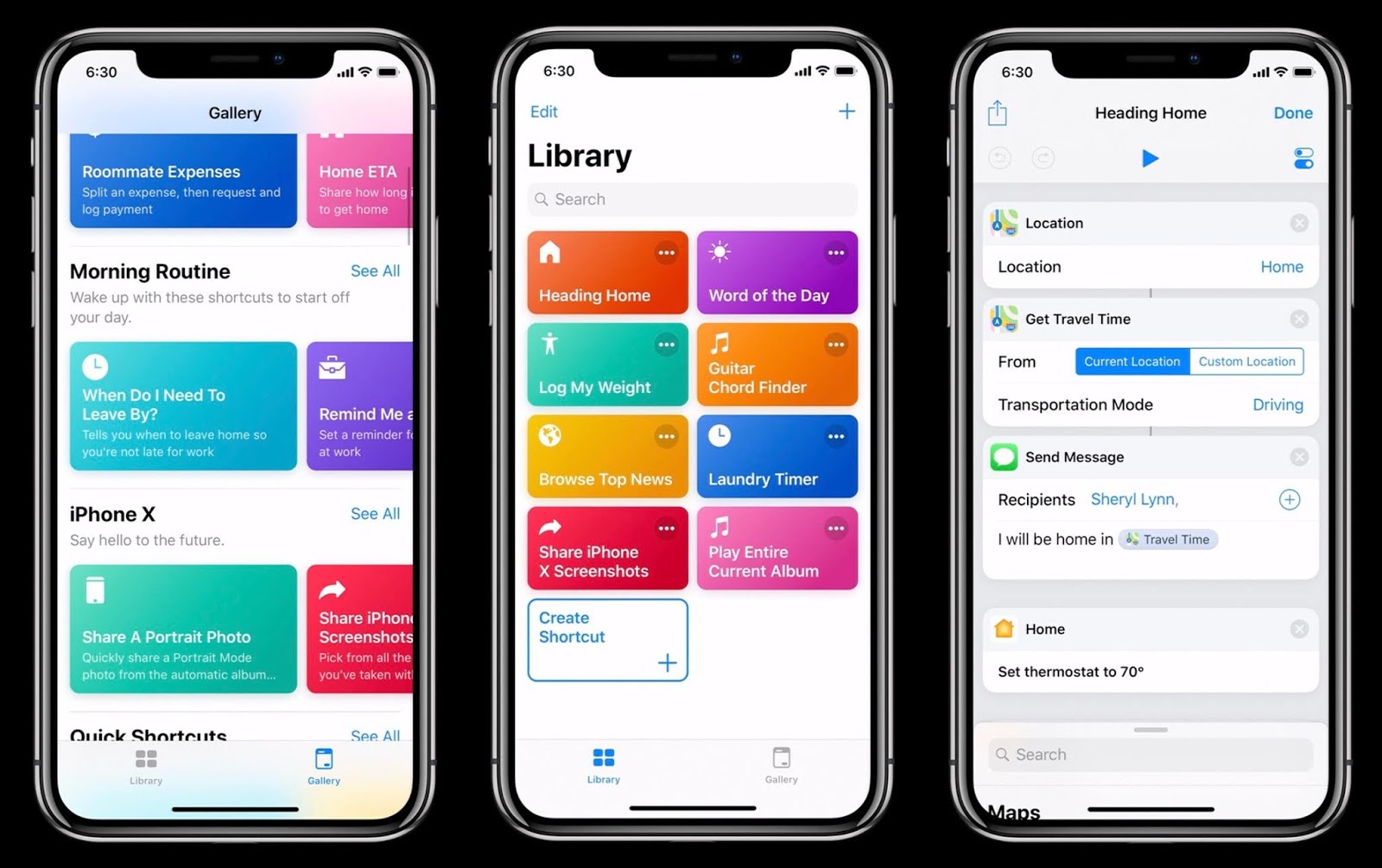
As a teacher, your time is precious. Time saved in your teaching tasks can be better used elsewhere in the classroom.  There are two apps that can save you time while helping you get stuff done.  For iOS and Android, there's IFTTT (If This Then That) and Shortcuts, an iOS exclusive.  They both essentially automate tasks, combining different functions, therefore saving you time and helping you get more done.


IFTTT is reactive in that if you initiate a task, then it will initiate another.  For example, if a new photo is taken on Instagram, the image will also be tweeted to the users Twitter account, therefore saving you the step of opening Twitter and tweeting the picture.  If you have a file you want to sync to Dropbox, IFTTT gives you the ability to also save those files to Google Drive, therefore automating the tasks.  If you want to make sure and not miss an email attachment, you can configure IFTTT to save your email attachments to your Drive or Dropbox.  There are countless ways to use IFTTT in your teaching life.  Simply open up the app and explore the countless ways you can find it useful in getting things done all the while saving you time.

The Shortcuts app is only available on iOS.  It's kinda the same idea as IFTTT in that it can automate your workflow (which is what Shortcuts was previously called).  But with Shortcuts, you create an action by adding different apps together to automate a task and get it done quickly.  For example, I created a shortcut where I can enter text, which creates a PDF, and asks me where I want to save the PDF, either to iCloud Drive, Dropbox, or Google's Drive.  As a teacher, I find this handy if you'd like to create a quick PDF and share it with your students through Google Classroom or any other LMS.  Like IFTTT, the Shortcuts app has a gallery from which you can choose already make workflows.

You owe it to yourself to check these out.  But don't get overwhelmed by the number of tasks that they offer.  Start out finding one or two things you do often that you'd like to automate, especially with Shortcuts.  Then, venture further and create your own Shortcuts.

Monday, February 4, 2019

8 Ways to Have a Digital Teacher Community


Teachers are busy. Between parent meetings, staff meetings, and lesson planning, it can be tough to find time to meet with your department or colleagues on an individual basis. One of the best ways to cultivate a professional learning community is through technology. No longer do you have to carve out time to have a sit down with your department members, you can do it virtually, when you have time. Unfortunately, Google Plus is going away and not everyone has a Facebook account (or perhaps they've left Facebook recently), so how can you get together with your learning community? We'll, like they say, there's an app for that!

Slack: Slack is a good way to post documents for your team members to review. It's also a great way to chat with anyone in your department without having to have their phone number. Twitter: With Twitter, your department can hold a virtual meeting using a specific hashtag. Or, you can tweet a question or comment to your staff or an individual. Pinterest: Your department can create a Pinterest board where they can share documents and student work. Google Classroom: If you're using Google Classroom, it's easy to adapt to using it as a PLC. Create a new Google Classroom for your department where you can post comments, questions, and documents for your PLC to review. Edmodo: Edmodo already has a virtual community where teachers can share resources and ask questions. Create a new class in Edmodo where your colleagues can communicate. Seesaw: Create a new class titled with your department name. Seesaw allows for the sharing of documents and individual posts. A cool feature in Seesaw allows for the creation of a blog. Share the blog with the rest of the staff or admin so they can see the fabulous things you're discussing and sharing! Schoology: Like Google Classroom, you can set up a class for the staff or for your department. In Schoology, you create groups based department or grade level. Easily share documents and post to share questions and comments. Flipgrid: Use Flipgrid as the students would, by discussing a topic and having others comment on it. Staff can post questions, comments , or share what they're doing in the classroom. Other staff can ask questions or comment on the Flipgrid.

Sunday, February 3, 2019

The EdTech Coach Podcast is Live!


The EdTech Coach Podcast is Live!

Check it out for all things tech in the classroom!

From new apps to ideas for using apps in your classroom, the EdTech Coach Podcast is your go-to for using tech in your classroom!